
As the world becomes increasingly connected through IoT, the need for reliable data storage and transfer has become crucial. Raspberry Pi 4B has been a popular choice as an IoT gateway, however, ensuring data retention without internet connectivity is challenging. In this article, we’ll explore how using InfluxDB replication feature can help retain data on Raspberry Pi 4B even in the absence of internet connectivity. We’ll also discuss how Home Assistant can be used to scrape data from a UPnP router service to store locally in InfluxDB instance. By leveraging these tools, you can ensure your IoT devices remain online, collecting and storing critical data no matter what.
What is Home Assistant and influxDb ???
Home Assistant is an open-source home automation platform that allows users to connect and control a wide range of smart devices from various manufacturers. It enables users to set up automated routines, control their devices through voice assistants like Amazon Alexa or Google Assistant, and access the platform via a web interface or mobile app. Home Assistant also offers advanced features such as data scraping, machine learning, and custom integrations with third-party services. Overall, it is a powerful tool that allows users to create a personalized and integrated smart home experience.
InfluxDB is a popular open-source time-series database designed for storing and querying large amounts of timestamped data such as metrics, events, and IoT sensor data. It has a powerful query language that allows users to aggregate and manipulate data in real-time. InfluxDB is often used in IoT systems where there is a need to store and analyze high volume, continuous streams of data over time. Additionally, it supports features like retention policies, which let you define how long data should be kept, and continuous queries, which provide insights into real-time trends and predictions. Overall, InfluxDB is a scalable and reliable choice for those dealing with time-series data.
Deploy Influxdb
In this setup, we have hosted an InfluxDB OSS instance on a Virtual Private Server (VPS) using docker containers and a docker-compose stack. To ensure easy management, we have set up a reverse proxy in front of the instance with the help of nginx proxy manager. You can find the documentation for deploying Nginx Proxy Manager (NPM) here. Additionally, we suggest using the Portainer CE tool to effectively manage your Docker containers.
Below is an example Docker Compose file for an InfluxDB OSS instance. Be sure to change the admin password before deploying it. This service will run on port 8086, and at the bottom of the file, you need to update the name of the nginx proxy manager network. Additionally, adding external: true is necessary because this is an already existing Docker network that needs to be connected with the new service. To run the docker compose you can run docker compose up -d or just deploy with portainer.
version: "3.6"
services:
  influxdb:
    image: influxdb:latest
    container_name: influxdb
    restart: always
    environment:
      - INFLUXDB_DB=influx
      - INFLUXDB_ADMIN_USER=admin
      - INFLUXDB_ADMIN_PASSWORD=CHANGEME
    networks:
      - nginx-proxy-manager_backend
    volumes:
      - influxdb_data:/var/lib/influxdb
volumes:
  influxdb_data: {}
networks:
  nginx-proxy-manager_backend:
    external: true
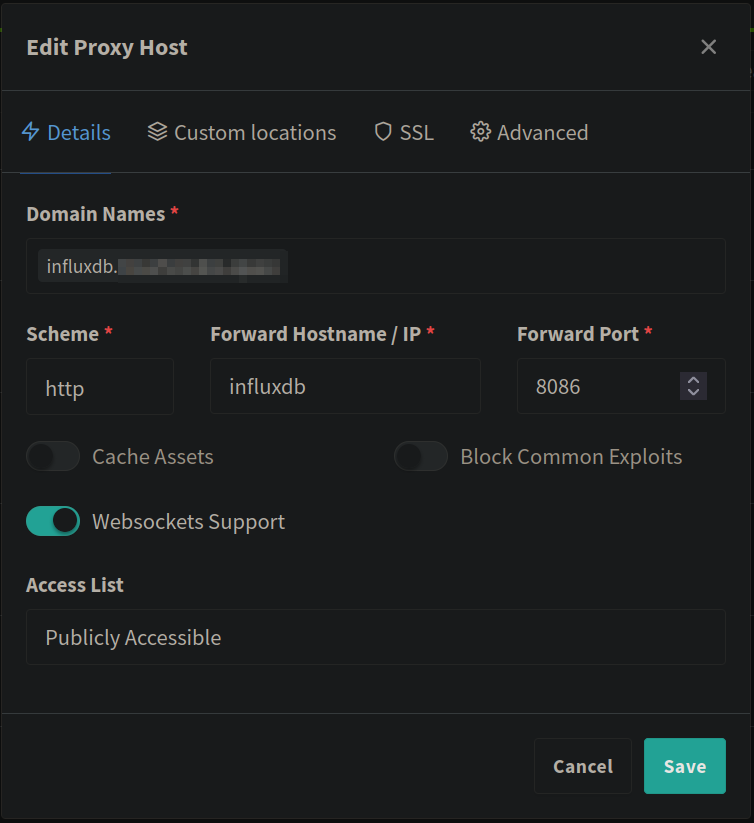
Once the docker-compose stack is deployed, configuring the reverse proxy with Nginx Proxy Manager requires following the image below. To do this, it is necessary to have a registered domain. For example, in my case, I chose to use the influx... subdomain. Additionally, socket connection and SSL should be enabled to ensure secure and stable connection.
Deploy Home Assistant and local InfluxDb OSS in Raspberry Pi 4B 4B
Before setting up your Raspberry Pi 4B, ensure you have the latest version of Raspbian installed. You can do this using the Raspberry Pi 4B Imager tool. I recommend using a 32GB or higher SD card with at least a class 10 rating to ensure optimal performance. For formatting the card with Raspbian Lite (64-bit), you can use Raspberry Pi 4B imager select “Raspberry Pi 4B OS (Other)” category, select your sd card and click on “WRITE” button. (From Raspberry Pi 4B imager you can also enable ssh and add ssh keys, you can do so from the gear icon down right of the Raspberry Pi 4B imager application.)
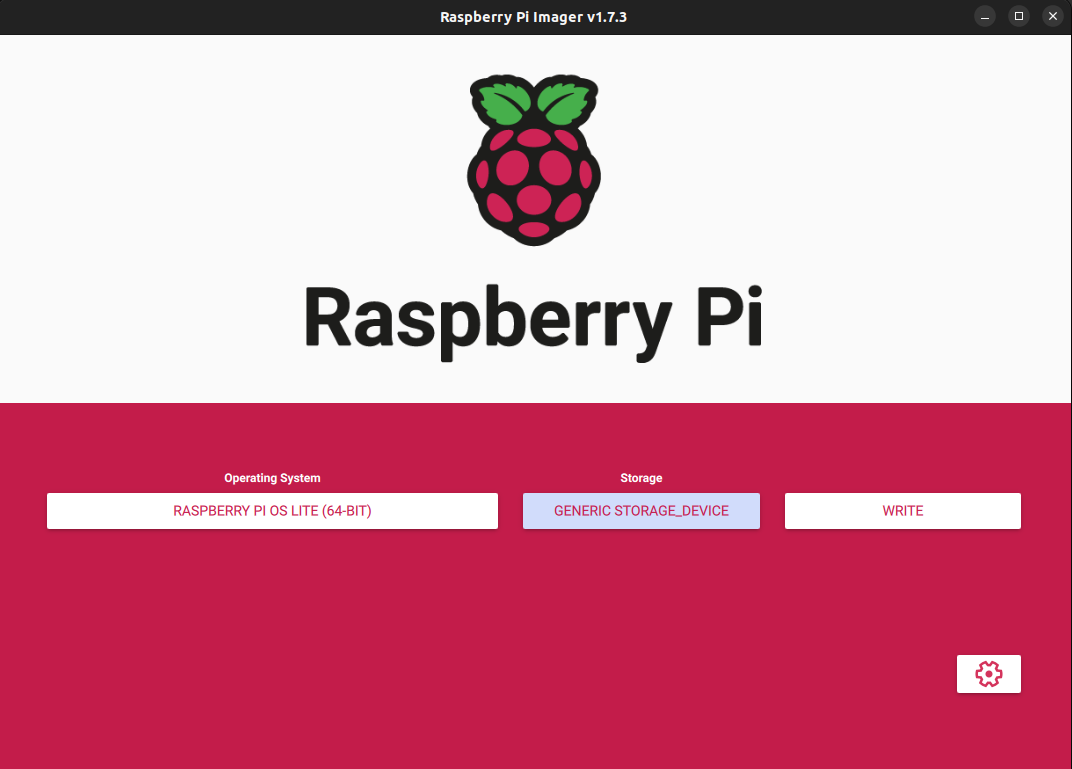
After the installation finishes you can unmount the SD and put it in your Raspberry Pi 4B. Connect the Raspberry Pi 4B with power and ethernet and wait to startup. Then ssh into your Raspberry Pi 4B, if you haven’t setup a ssh key and didn’t change the default user and password is: pi:raspberry.
First things first you need to update your Raspberry Pi 4B with the following commands:
sudo apt update
sudo apt upgrade -y
sudo apt dist-upgrade -y
sudo reboot
Then we will need to install docker and docker-compose, to do so follow the instructions below:
curl -fsSL https://get.docker.com | sudo sh -
sudo usermod -aG docker $(whoami)
sudo reboot
Now its time to create two docker containers with the help of docker compose and with the following docker-compose.yaml.
version: "3.6"
services:
  influxdb:
    image: influxdb:latest
    container_name: influxdb
    restart: always
    environment:
      - INFLUXDB_INIT_MODE=setup
      - INFLUXDB_DB=influx
      - INFLUXDB_ADMIN_USER=admin
      - INFLUXDB_ADMIN_PASSWORD=admin
      - INFLUXDB_INIT_ORG=haos
      - INFLUXDB_INIT_BUCKET=home-assistant
      - INFLUXDB_INIT_ADMIN_TOKEN=change-me-1LoyZa83wlbeMSgENj0rUfl6gpH0FEofzzn7TUR-ABeUYlr2YyKVqcvo0yTN0N_XpGeJMZIVbv7g==
      - TZ=Europe/Athens
    networks:
      - iot
    ports:
      - 8086:8086
    volumes:
      - influxdb_data:/var/lib/influxdb2
  homeassistant:
    image: lscr.io/linuxserver/homeassistant:latest
    container_name: homeassistant
    environment:
      - PUID=1000
      - PGID=1000
      - TZ=Etc/UTC
    volumes:
      - homeassistant:/config
    networks:
      - iot
    ports:
      - 8123:8123 #optional
    restart: unless-stopped
networks:
  iot:
volumes:
  influxdb_data: {}
  homeassistant: {}
In summary, this Docker Compose configuration sets up two containers, one running InfluxDB and the other running Home Assistant, and connects them to a shared network. It also specifies port mappings and volumes for data persistence. This configuration can be used to launch and manage these containers together as a single application using Docker Compose. To do so tou can run the following commands:
docker compose pull
docker compose up -d
Connect Home Assistant, InfluxDb and add UPnP for data
Install and Configure the InfluxDB Add-on
To set up InfluxDB within your Home Assistant environment, first access the Home Assistant’s web interface. Once there, navigate to the “Supervisor” section on the sidebar. Inside the Supervisor panel, find and select “Add-on Store.” In the Add-on Store, search for the official InfluxDB add-on and proceed to install it. After installation, you’ll need to configure the add-on by supplying essential settings, such as the InfluxDB URL and credentials. Once you’ve completed the configuration, initiate the InfluxDB add-on and patiently await its initialization, ensuring a smooth integration within your Home Assistant setup.
Configure Data Logging
Now that Home Assistant is connected to InfluxDB, you can start logging data from your smart devices. You can configure data logging in the Home Assistant configuration file (configuration.yaml) or through the web interface.
To configure data logging via the web interface, go to “Configuration” > “Logs” and select the “Recorder” integration. Set your preferences for data retention and entities to track.
To configure data logging in the configuration.yaml file, add the following lines:
.
.
.
recorder:
  db_url: influxdb://user:password@influxdb_host:influxdb_port/influxdb_database
.
.
.
Replace user, password, influxdb_host, influxdb_port, and influxdb_database with your InfluxDB credentials.
Adding UPnP for Data Integration
To integrate UPnP (Universal Plug and Play) with Home Assistant, start by accessing your Home Assistant web interface and navigating to the “Configuration” section. In this section, you can manage integrations. By clicking the “+” button, you can add a new integration, and here you’ll search for the “UPnP” integration. Follow the on-screen instructions to configure UPnP devices and services. This might involve enabling UPnP on your devices if it’s not already activated. Once the configuration is complete, UPnP-enabled devices will automatically become accessible in your Home Assistant interface.
With your UPnP devices seamlessly integrated into Home Assistant, you can now proceed to create automations and scripts for enhanced control and monitoring. Visit the “Configuration” menu, and within it, select “Automations.” In this section, you can craft new automations based on events triggered by your UPnP devices. Utilize the Home Assistant automation editor to define the specific trigger and action conditions for your automations. For instance, you can establish an automation that activates a UPnP-compatible light when motion is detected. Once your automations are set up, remember to save and activate them.
By following these steps, you’ve successfully combined Home Assistant with InfluxDB for data logging from your smart devices. Furthermore, the incorporation of UPnP support enhances your smart home ecosystem by providing seamless integration and automation capabilities for UPnP-compatible devices. This integration opens up an array of possibilities for creating a more interconnected and responsive smart home environment tailored to your needs and preferences.
Create replication link
Creating a replication link in InfluxDB involves two main steps: creating a remote connection and setting up the replication stream. These commands must be executed from the Raspberry Pi’s Docker container of the InfluxDB instance, as indicated. Below are the steps to create a replication link. Before you start navigate in both influxdb instances and get for each an api-key with foul access (rewrite them down because tey are available only upon creation). Also find what is your organizations ids (when you navigate to your bucket from the UI take it from the URL) and bucket ids.
Access the InfluxDB Docker Container
Before you can create the replication link, you need to access the Raspberry Pi’s Docker container for InfluxDB. To do this, execute the following command:
docker compose exec influxdb bash
This command navigates to the appropriate directory and then opens a shell inside the InfluxDB Docker container.
Create a Remote Connection
Use the following command to create a remote connection. This command establishes a link to the remote InfluxDB instance:
influx remote create \
  --name updatedUrlRemote \
  --remote-url <protocol://domain> \
  --remote-api-token <remote_api_key> \
  --remote-org-id <remote_organization_id> \
  --org-id <local_organization_id> \
  --token <local_api_key>
In this command, you’re naming the remote connection (updatedUrlRemote), specifying the remote URL, API token, organization ID, and local organization ID. Ensure that you replace the placeholders with your specific values.
Set Up the Replication Stream
Now that the remote connection is established, you can create the replication stream with the following command:
influx replication create \
  --name updatedUrlReplicationStream \
  --remote-id <local_remote_id> \
  --local-bucket-id 183d80889ba06a24 \
  --remote-bucket <remote_bucket_name> \
  --org-id <local_organization_id> \
  --token <local_api_key>
In this command, you’re naming the replication stream (updatedUrlReplicationStream) and specifying the remote and local IDs, as well as the remote and local buckets. Again, make sure to replace the placeholders with your specific values.
By following these steps and executing the provided commands within the InfluxDB Docker container or on the Raspberry Pi, you’ll successfully create a replication link to stream data to a remote InfluxDB instance. This replication link allows you to maintain data synchronization and redundancy between the edge and cloud InfluxDB databases.
Conclusion
In the age of IoT and smart homes, the need for reliable data storage and management solutions is paramount. This article has explored the powerful combination of Home Assistant and InfluxDB, offering readers a comprehensive guide to setting up a robust data ecosystem for their IoT devices. By leveraging the capabilities of InfluxDB and Home Assistant, you can ensure that your data remains secure and accessible, even in environments with limited or no internet connectivity.
We’ve covered the installation and configuration of InfluxDB, whether you’re running it on a Virtual Private Server with Docker containers or on a Raspberry Pi. The inclusion of key tools like Nginx Proxy Manager and Portainer CE simplifies management and ensures a seamless experience.
Additionally, we’ve walked through the process of connecting Home Assistant to InfluxDB, allowing you to log and monitor data from your smart devices. Whether you prefer to configure it through the web interface or directly in the configuration.yaml file, this integration enhances your smart home’s capabilities.
One of the highlights of this article is the integration of UPnP (Universal Plug and Play), which adds a new layer of automation and control to your devices. You can seamlessly integrate UPnP-enabled devices into Home Assistant, opening the door to endless possibilities for creating a responsive and interconnected smart home environment.
Finally, we explored data replication using InfluxDB, providing an essential solution for maintaining data synchronization and redundancy. By creating a replication link, you can ensure the safety and accessibility of your data, whether at the edge or in the cloud.
In conclusion, this article equips you with the knowledge and step-by-step instructions to create a powerful, self-hosted IoT data ecosystem. With Home Assistant, InfluxDB, and data replication, you can rest assured that your IoT devices will continue to function and store vital data, ensuring a seamless and responsive smart home experience, even in challenging conditions. Embrace the world of IoT with confidence, knowing that your data is in safe hands.